

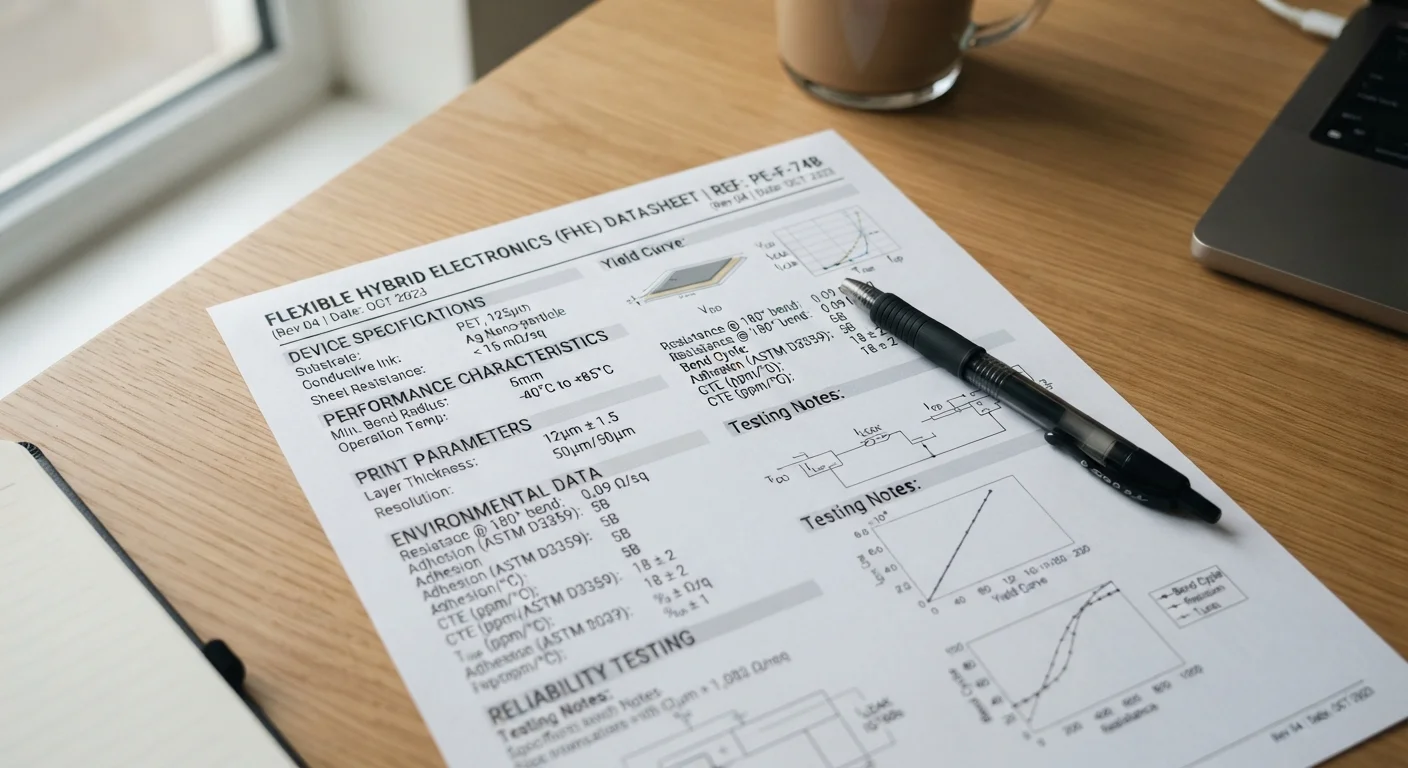
Why spec sheets are hard to read
A spec sheet is a condensed list of hardware measurements and software features written primarily for engineers and procurement teams, not for families comparing devices at home. Manufacturers then layer marketing language over those numbers, which can make a mid-range device sound identical to a high-end one if you do not know what the labels mean.
The result is a page packed with abbreviations, units, and phrases that mean something specific in engineering but read as noise to most people. The good news is that you do not need to understand every line. A spec sheet for any consumer device has about five or six categories that actually govern day-to-day experience. Everything else is supplementary.
For a broader orientation to how devices work together at home, our beginners guide to consumer electronics provides a useful starting point before you dig into individual spec sheets.
Marketing numbers are not always real-world numbers
Battery life, display brightness, and speed claims on spec sheets are typically measured under controlled lab conditions. Real-world performance depends on how you use the device, your network environment, and software settings. Treat any headline figure as a ceiling, not a guarantee.
What you need before you start
Pull up the spec sheet for the device you want to evaluate. Manufacturer websites, major retail listings, and review sites all carry this information, though the level of detail varies. The manufacturer's own product page tends to be the most complete source.
What you will need
The device's official spec sheet or product page
The primary source of hardware figures you will interpret during this process.
A plain-language glossary of hardware terms
Helps translate unfamiliar abbreviations and unit labels into plain descriptions.
A notepad or simple comparison spreadsheet
Lets you record and compare key specs across two or more devices side by side.
Having a notepad or simple spreadsheet nearby lets you record the key figures as you go, which makes side-by-side comparison much easier when you are looking at two or three devices.
Focus on the specs that match your use case
A family using a laptop for video calls and document editing needs very different specs than someone running video editing software. Before reading any spec sheet, write down the two or three things you will actually do with the device. Use that list to filter which numbers matter.
Step-by-step: reading the spec sheet
Work through the spec sheet in the order below. Each step targets one category of spec. You do not need to read the sheet top to bottom in the order it is printed; manufacturers organize pages differently. Use the category labels as a guide to find what you need.
Identify the device category and its primary purpose
Before reading a single number, note what type of device the spec sheet covers and what it is designed to do. A spec sheet for a wireless router lists throughput and frequency bands; one for a laptop lists processor class and RAM. Each category has a short list of specs that determine daily performance. Knowing the category tells you which section of the sheet to read first.
Find the processor spec and decode the tier
The processor (also called the CPU or chip) determines how fast a device handles tasks. Spec sheets list a model name or number for this component. Rather than memorizing every model, look for tier language: words like 'Core i3', 'Core i5', 'Snapdragon 7', or 'A-series' indicate a position in a manufacturer's lineup. A mid-tier chip handles streaming, browsing, and document work without difficulty. Higher tiers are built for demanding tasks such as photo editing or gaming.
Our plain-language glossary on storage, RAM, and processor speed explains these tiers in detail if the model name is unfamiliar.
Read RAM and storage as separate numbers
RAM (Random Access Memory) and storage are almost always listed close together on a spec sheet, but they do different jobs. RAM, measured in gigabytes (GB), handles how many tasks run at once without slowing down. Storage, also measured in GB or terabytes (TB), holds your files, apps, and photos permanently. A device with 4 GB of RAM will feel slow if you keep many browser tabs open. A device with 64 GB of storage fills up quickly if you store videos or large app libraries.
For most families, 8 GB of RAM and 128 GB of storage are reasonable starting points for a general-purpose laptop or tablet, though heavier use warrants more of each.
Interpret display specs without being misled
Display specs include resolution, screen size, and refresh rate. Resolution describes how many pixels fit on the screen, listed as two numbers such as 1920x1080 (also called Full HD or 1080p). Higher resolution produces sharper images. Screen size, in inches, is measured diagonally. Refresh rate, in hertz (Hz), describes how many times per second the image updates: 60 Hz is standard for everyday use, while higher rates matter mainly for fast gaming.
For a deeper look at which display numbers translate to a real viewing difference, see our guide on TV features that actually matter.
Check battery capacity and interpret the life estimate
Battery capacity is listed in milliampere-hours (mAh) or watt-hours (Wh). A higher number means a larger battery, but actual battery life also depends on screen brightness, processor workload, and software. The advertised battery life figure, such as '10 hours of video playback', usually comes from a low-brightness, single-app test. Expect real-world usage to land below that number under typical mixed-use conditions.
Note connectivity specs and check for missing standards
Connectivity specs list ports, wireless standards, and Bluetooth version. Common items include USB-A and USB-C ports (and their speed ratings), Wi-Fi generation (such as Wi-Fi 5 or Wi-Fi 6), and Bluetooth version. A missing spec is as informative as a listed one. If a device spec sheet does not mention a headphone jack, an SD card slot, or a specific port type, it probably does not have one. Do not assume a feature is present if it is not listed.
Watch out for vague spec labels
Terms like 'up to', 'as fast as', or 'enhanced performance' carry no precise meaning and are not comparable across products. When you see these phrases, look for the actual numeric spec nearby. If no number is given, the claim cannot be evaluated.
Putting the numbers in context
Once you have noted the key figures, compare them against the tasks you wrote down before starting. A processor tier that handles your workload, enough RAM for your habits, and storage that fits your files are the three factors most likely to affect whether a device feels fast or slow a year after you bring it home.
Specs you can generally set aside for most households include the exact camera aperture on a laptop webcam, the speaker frequency response range, and any certification badge that applies only to niche professional use. These appear on spec sheets because they matter in specific contexts, not because they affect general family use.
Our storage, RAM, and processor speed glossary is a good follow-up reference when a specific term still seems unclear after working through a sheet.