

Why heat is your laptop's biggest enemy
Every laptop generates heat as its processor and graphics hardware run tasks. When that heat cannot escape efficiently, internal components degrade faster than they otherwise would. Thermal throttling (the automatic slowdown a laptop triggers to protect itself from overheating) is a sign that cooling is already struggling, not a safe long-term solution.
The fix is straightforward: give the machine room to breathe. Soft surfaces such as beds, couches, and laps block the vents built into the chassis. A hard, flat surface keeps air moving. If you use your laptop on a soft surface regularly, a rigid lap desk costs very little and makes a real difference.
Dust accumulation inside the vents is an equally common culprit. A short burst of compressed air aimed at the exhaust vents every few months removes the debris that slows fans and traps heat. You do not need to open the machine to do this.
Check your laptop's vents before each session
Take a quick look at where your laptop's exhaust vents are located (usually along the sides or rear edge) before setting it down. Positioning the machine so those vents face open air rather than a wall or cushion takes no extra time and prevents the most common overheating scenario. Some users add small adhesive rubber feet to the bottom if the originals have worn away, which lifts the chassis slightly and improves airflow.
Battery habits that hold up over time
Lithium-ion batteries, which power virtually every modern laptop, degrade through a combination of heat, deep discharges, and sustained high charge states. The practical implication is that leaving a laptop plugged in at 100 percent for extended periods does stress the battery over months and years, though the effect varies by manufacturer and model.
A reasonable middle ground for most users is to avoid routinely letting the battery drop below 20 percent or sit continuously at 100 percent. Many laptops now include a battery health or charge-limit setting in their system preferences that caps charging at 80 percent when the machine is primarily used plugged in. That setting is worth enabling if your laptop offers it.
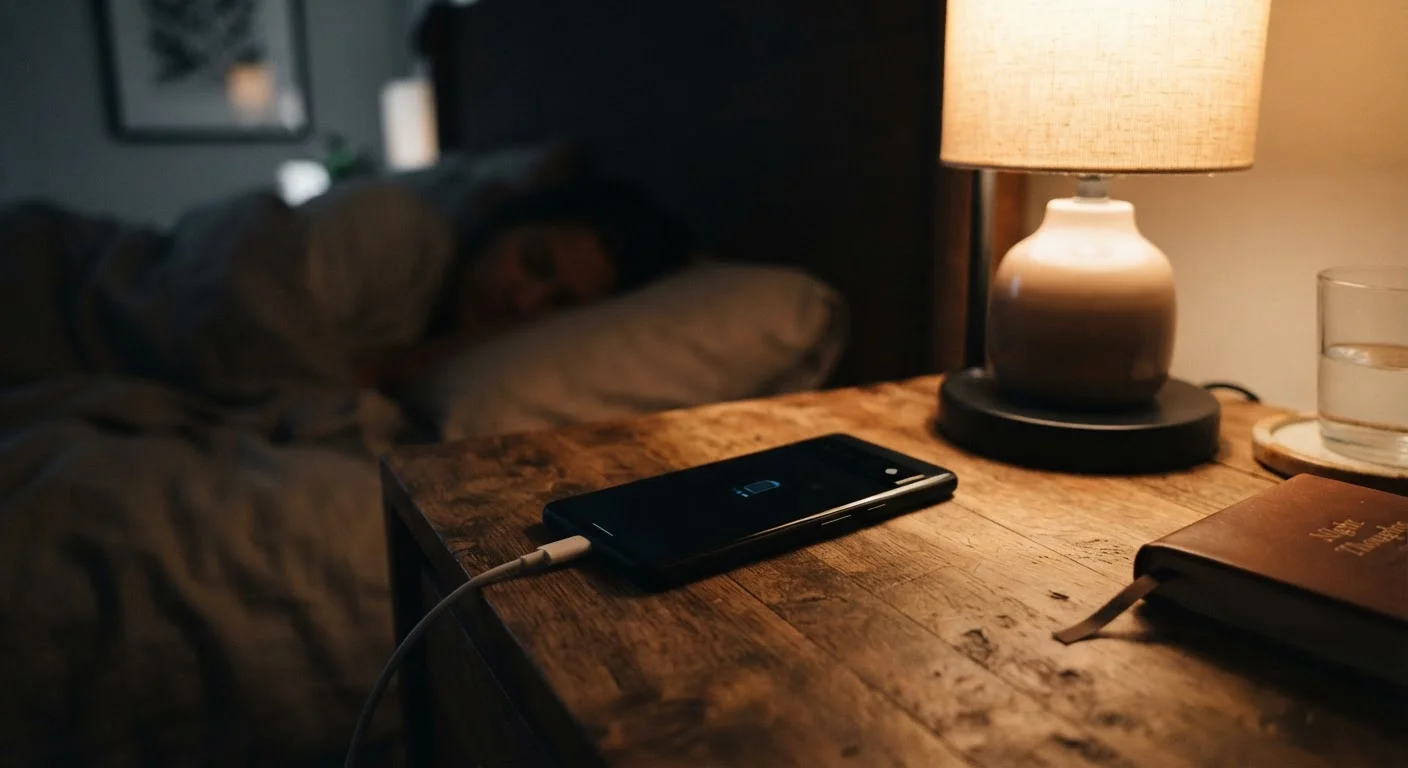
For more on what charging research actually shows, see what the evidence says about overnight charging.
Physical care and storage
The screen is the most expensive component to replace on most laptops, and it is the one most often damaged by pressure. Closing the lid with objects on the keyboard (a pen, a cable) can crack the display from the inside. Checking the keyboard before closing takes two seconds.
Carrying a laptop in a bag without a dedicated padded compartment subjects it to repeated jostling against other objects. A sleeve inside the bag, or a bag with a padded laptop pocket, absorbs minor impacts that add up over time.
Liquid damage is almost always avoidable. Keeping open drinks away from the keyboard is the only reliable prevention; most laptop keyboards are not sealed against spills. If a spill does occur, powering off immediately and allowing the machine to dry for at least 48 hours before restarting gives the best chance of avoiding a short circuit.
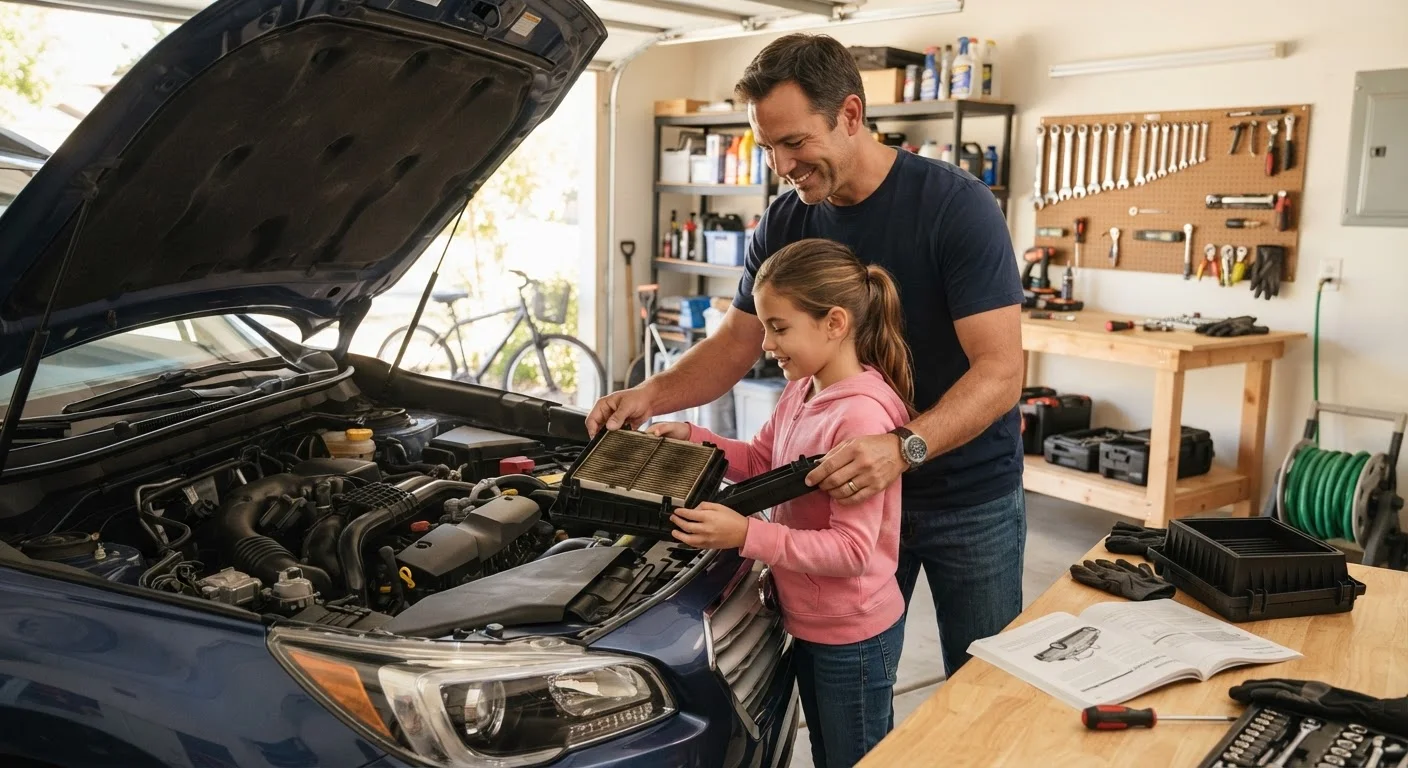
For a broader look at which maintenance tasks families can handle at home, this guide on realistic DIY upkeep applies the same philosophy across different devices.
Software hygiene and storage health
A laptop that is slow often feels like it needs replacing when it actually needs cleaning up. Storage drives that are nearly full work harder and perform worse. Keeping at least 15 to 20 percent of the drive's capacity free is a practical rule for maintaining performance. Deleting files and applications that are no longer used costs nothing.
Background applications consume processor cycles and memory (RAM) even when you are not actively using them. Reviewing which programs launch automatically at startup and disabling unnecessary ones reduces the load the hardware carries at all times. If these terms are unfamiliar, a plain-language glossary covering storage, RAM, and processor speed explains what each one does.
Operating system updates include security patches that protect the machine from software threats that can degrade performance over time. Staying current on updates is part of keeping a laptop healthy, not just secure.
Understanding when a laptop has genuinely reached the end of its supported life is a separate question. the lifecycle of a consumer device walks through how manufacturers support hardware over time and what to consider before replacing rather than repairing.
Use a hard, flat surface whenever possible during use.
Soft surfaces block ventilation vents and trap heat against the chassis. Sustained high internal temperatures degrade processors, memory, and batteries faster than normal use would.
Clean vents with compressed air every three to four months.
Dust restricts airflow and forces fans to work harder, raising internal temperatures. Regular cleaning prevents the gradual buildup that causes thermal problems without obvious warning signs.
Enable a charge-limit setting if your laptop provides one.
Keeping a lithium-ion battery at 100 percent charge for long periods accelerates chemical aging in the battery cells. Capping charge at 80 percent when the machine is regularly used plugged in reduces this stress.
Check the keyboard for objects before closing the lid.
Closing the lid on a pen, cable, or any small object can exert enough pressure on the display to crack the panel or damage the screen coating, which is costly to repair.
Keep free storage space above 15 percent of total drive capacity.
A full or near-full drive causes measurable slowdowns and forces the operating system to manage file storage inefficiently. Maintaining headroom preserves read and write performance.
Audit startup applications and disable those you do not need.
Programs that launch automatically at startup consume processor and memory resources continuously, slowing the machine even when idle tasks are running in the background.